

Product Categories
- > Digital Textile Printer
-
- Fedar Sublimation Textile Printer
FEDAR FD61916E Sublimation Printer FEDAR FD1924 Sublimation Printer FEDAR FD1912S Sublimation Printer FEDAR FD61915E-A Sublimation Printer FEDAR FD5198E Sublimation Printer FEDAR FD51915E Sublimation Printer FEDAR FD53215E Sublimation Printer FEDAR FD61915E Sublimation Printer FD6198E 8 Heads Printer FD6194E 4 Heads Printer FD5194E 4 Heads Printer FD5328E 3.2m Printer FD5193E 3 Heads Printer FD5268E 2.6m Printer FD1900 2 Heads Printer
- Fedar DTF Printer
FD11308 DTF Printer FD1808 DTF Printer FDA3 Pro DTF Printer A3 DTF Printer FDA3 DTF Printer FD70-5 DTF Printer FD60 DTF Printer FD70-4 DTF Printer
- Aulane DTF Printer
Aulane AL2808 DTF Printer Aulane AL2606 DTF Printer Aulane AL2604 DTF Printer Aulane AL2602 DTF Printer Aulane AL2302 DTF Printer Aulane AL2301 DTF Printer
- Fedar Sublimation Textile Printer
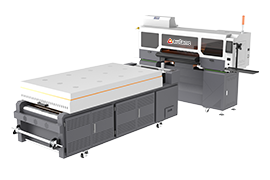
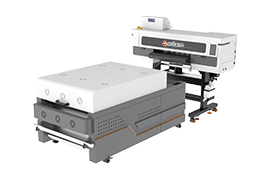
Complete Pre-Holiday Care for Fedar Sublimation Printer
2026-04-29Step 1 – Thorough Cleaning Before Shutdown
Print a nozzle test pattern
Use your RIP software to print a nozzle check. Confirm every nozzle fires correctly. If you see missing lines or deflection, run cleaning cycles until the test pattern is perfect. This ensures your inkjet printer leaves no hidden issues that could worsen during the break.
Clean around the printhead
Take a lint-free cloth or cotton swab, dip it in dedicated cleaning solution (or purified water), and gently wipe the area around the printhead – always in one direction. This removes ink mist and dust that can harden over time.
Clean other critical components
Wipe the capping station, wiper blade, encoder strip, and guide rails. Empty the waste ink tank completely, rinse it with water, and make sure no waste ink can overflow during the long shutdown. A clean capping station is essential for a perfect seal on your sublimation printer.
Step 2 – Critical Moisturizing (The Core of Clog Prevention)
Moisturizing is the heart of holiday maintenance. It keeps your printheads alive.
Automatic moisturizing (recommended for most holidays)
After cleaning, simply shut down the printer as normal. The carriage will automatically return to the capping station, forming an airtight seal that retains humidity and prevents ink from drying inside the nozzles. This is the standard procedure for any Fedar textile printer.
Manual enhancement (for holidays >7 days or very dry climates)
If your workshop is extremely dry or the shutdown exceeds one week, add a few drops of dedicated cleaning solution into the capping station’s ink cap. Then let the carriage return. This extra moisture provides superior protection for the printhead of your wide format printer.
Step 3 – Power-Off & Final Sealing
Disconnect power
Turn off the main power switch and unplug the power cord. This protects your digital textile printer from lightning strikes and voltage fluctuations that could damage sensitive electronic boards.
Seal the ink system
Check the caps on your bulk ink tanks (CISS). Tighten them to prevent air from entering, which could degrade ink quality and cause crystallization.
Cover the printer
Use a dust cover or a large clean cloth to fully protect the machine from dust, debris, and accidental spills. Dust is a silent killer for inkjet printers – it can settle on the encoder strip and attract moisture, leading to print misalignment.
Step 4 – Environmental Requirements
Store your Fedar sublimation printer in a space that is:
Cool – temperature ideally between 18~30°C
Dry – relative humidity 35~65%
Dust-free – minimise airborne particles
High temperature and humidity encourage ink crusting and electronic failure. Low temperature can alter ink viscosity. Keep the environment stable.
After the Holiday – Quick Restart
When you return, remove the dust cover, plug in the printer, run a nozzle test, and if everything looks good, you are ready to print. If you followed the moisturizing steps, your Fedar textile printer will start without clogs, saving you hours of troubleshooting.